 正版资源
共振抑制器Codwaves – Quance Resonance Suppressor v1.0.0 for Windows
Codwaves 的 Quance Resonance Suppressor v1.0.0 是一款 Windows 下的共振抑制插件,专门处理那些听久了会让耳朵发累的频段峰值。它不走“扫频找点、拉一个宽凹槽”的老路,而是实时分析当前声音,只把产生疲劳感的共振压下去,构成音色的谐波、瞬态和主体部分保持
网盘链接 · 支付成功后自动发货
永久有效 · 链接失效免费补发
每日 9:00-21:00 在线客服
Codwaves 的 Quance Resonance Suppressor v1.0.0 是一款 Windows 下的共振抑制插件,专门处理那些听久了会让耳朵发累的频段峰值。它不走“扫频找点、拉一个宽凹槽”的老路,而是实时分析当前声音,只把产生疲劳感的共振压下去,构成音色的谐波、瞬态和主体部分保持原样。对做电子音乐、混音和配乐的人来说,这意味着人声的元音不会被削得发糊,军鼓的敲击边缘还在,镲片也不至于变得发闷——这些问题在“去掉刺耳”的过程中很容易被一起牺牲掉。
自适应滤波器与保护系统怎么分工
Quance 内部有数百个自适应频谱滤波器,但它们不会全部同时开工,只在频谱确实出问题的区域启用必要的数量,并且每隔几毫秒就重新判断一次清洁区域。这是它和“一键柔化”类工具的区别:处理范围跟着声音走,而不是固定挂在某个频率上。保护系统与检测器协同工作,避免抑制过程中出现损伤音质的削波失真,所以推得比较狠的段落也不容易冒出硬边。面板上的清洁级别由你手动决定,觉得压得不够或者过头,直接调它就行,具体压哪里交给自动判断。
用 Learn 解决“只在某几句出现”的共振
有些共振是间歇性的:某几句歌词才有的嘶嘶声,某个特定音高才被激发的房间共鸣,副歌刺耳、主歌却正常的镲片。用静态 EQ 处理这类问题代价很高,因为你要为一个瞬时现象牺牲整轨音色。Quance 的 Learn 就是为这个场景准备的:播放让你困扰的那一段,点下学习,它会找出最明显、最持久的共振,把每个共振的宽度与峰值对齐,并缩小问题区域周围的检测范围。放进工程时建议先 Learn 再手动微调,一次只处理一个声源——人声、军鼓、镲组、贝斯各挂一个,通常比直接压在总线上更可控。它替代不了编曲层面的取舍,但能把“去掉刺耳”和“保住力度”这两件本来互相拉扯的事同时做掉。
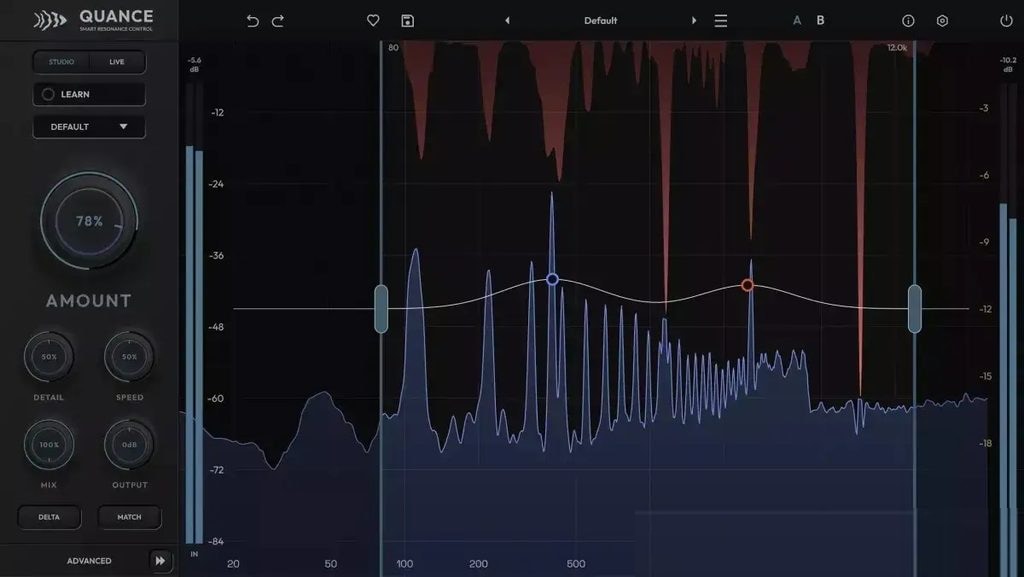
Quance 会分析你的声音,找出那些听起来令人疲劳的峰值,并在你演奏时将其降低。构成你声音的谐波、瞬态和音色则保持不变。
这个问题对每位工程师来说都很熟悉。
去除刺耳的声音时,往往会损失混音中一些重要的东西。元音会变得模糊,军鼓会失去清晰度,虽然混音会变得更柔和,但听起来却可能不够有力。
Quance 的诞生正是为了解决这个问题。数百个自适应频谱滤波器仅在频谱出现问题的区域工作,且仅启用必要的数量。保护系统与检测器协同工作,避免可能损害音质的削波失真。
您可以通过简单的控件自行选择清洁级别。Quance 会自动确定清洁区域,并每隔几毫秒更新一次设置。
由专业人士创建
Quance 的创立源于一个问题:如果工程师参与设计共振控制系统会怎样?我们研究了现有的工具,并决定对其进行改进。然后,我们做了每个开发者都应该做的事情:我们与顶尖的音频工程师和制作人分享了我们的原型,并询问他们如何才能进一步完善。
我们收到的反馈很有帮助。这个功能可以添加吗?这个功能可以简化吗?每一次讨论都围绕工作流程和性能展开,每一轮反馈都对插件的开发做出了贡献。Quance 就是最终成果。
当我们开始收到来自高素质专业人士的这类信件时,我们意识到我们已经实现了目标。
智能学习:从声音本身开始
播放让你感到困扰的部分,然后点击“学习”。Quance 会聆听,找到最明显、最持久的共振,并专注于这些共振,将每个共振的宽度与其峰值匹配。它还会缩小问题区域周围的检测范围。
有些问题并非总是出现。例如,某些歌词可能会出现嘶嘶声,而房间共鸣可能只出现在某个音符上。钹声在副歌部分可能听起来刺耳,但在主歌部分则不然。单击一次即可启动无限循环,程序会持续播放问题部分,并在问题解决后通知您。单击两次即可启动固定的八秒循环。
“学习”功能根据所选模式运行,因此人声处理与鼓组处理有所不同。该功能不会更改“量”设置,并且可以一步撤销所有操作。您可以保存、调整或删除结果。
音色和瞬态保护:音质纯净而不牺牲性能
Tone Protect 功能可监测人声的基频、泛音和共振峰,防止其在可能造成损害的情况下被衰减。增强人声时,元音的音色得以保留。降低大提琴的音量,其音色也不会受到影响。
瞬态保护功能能够识别打击乐器的起音,无论是辅音还是拨弦,并对其进行衰减。宽广的起音听起来可能像共鸣,但 Quance 可以区分两者。小军鼓保持了清脆的音色,人声也保持了清晰度。
两种功能会根据模式而有所不同。鼓组模式更侧重于瞬态保护,而人声模式则侧重于音色。如果您遇到音高相关的问题,例如振铃或“啸叫”的房间效应,请关闭保护功能,让 Quance 来处理问题。
驯服与保护:八个重点,四个探测范围
自动检测功能完成了大部分工作,焦点控制则负责其余部分。双击图表即可添加一个焦点。提高焦点高度可增强该频率下的检测灵敏度,降低焦点高度则可保护该区域免受灵敏度下降的影响。最多可同时使用八个控制点,每个控制点的宽度均可自定义——从窄槽到宽曲线。
在调整“量”参数之前,请将保护点设置在低音基频处。对于齿音较重的歌声,可在 6 kHz 处添加一个抑制点。点击耳机上的任意位置即可高亮显示该频段,然后调整滑块,通过耳朵找到共振点。
检测范围决定了Quance的运行区域。最多可同时使用四个检测点,在不影响人声频段的情况下,同时衰减中低频和高频。只需单击鼠标右键,即可访问七个预设范围,涵盖从齿音到军鼓环音的各种模式。
从零延迟到超高分辨率:五种质量等级
Quance 包含两组四种不同的处理引擎,因此插件会适应您的需求,而不是您去适应它。
Studio 采用三频段引擎,并提供多种分辨率级别。低频段的长分析窗口可捕捉窄带房间模式和低音,而高频段的短窗口则能保留瞬态的清晰度。Studio Pro 是有效的默认选项。Studio Ultra 将每个窗口的分辨率提高一倍,从而提供 Quance 所能提供的最佳频率分辨率。它非常适合混音和母带处理,因为您的 DAW 会进行补偿。
Live 模式专为录音、监听、流媒体和现场演出而设计。Light 和 Normal 模式提供低延迟窗口。Zero 模式的独特之处在于,音频无需经过快速傅里叶变换。取而代之的是,它使用 48 个最小相位滤波器,以采样对齐的方式降低延迟,从而使 Quance 显示零延迟。它非常适合演唱、监听或现场表演。
课程进行中更改成绩后,Quance 会自动无缝切换到下一个主题。无需点击操作。
自动响度匹配:评估音调而非音量。降低共振会降低音量。在快速的A/B测试中,音量较小的声音听起来可能更差,这种偏差会导致许多工程师对自己的选择产生怀疑。
开启匹配功能后,Quance 将使用心理声学测量方法持续测量输入和输出的感知响度,并进行相应的调整。这样一来,试听对比、A/B 快照和预设聆听环节都将变得更加客观。您只需判断音轨的音质是否更佳即可。
配合 Delta 使用,Delta 只会复制 Quance 移除的内容。Delta 会精确显示被移除的内容。Match 可以帮助您判断移除是否值得。
系统要求
- Windows 10+
Quance analyzes your sound, finds peaks that are fatiguing to listen to, and reduces them while you play. The harmonics, transients, and timbre that shape your sound remain unchanged.
This problem is familiar to every engineer
When you remove harshness, you often lose something important in the mix. Vowels lose clarity, snare drums lose definition, and while the mix becomes smoother, it can seem less powerful.
Quance was created to solve this problem. Hundreds of self-tuning spectral filters operate only where the spectrum is causing problems, and only as many as necessary. Protection systems work in conjunction with the detector to avoid clipping that could harm the sound.
You choose the cleaning level yourself using a simple control. Quance automatically determines where to apply cleaning and updates the settings every few milliseconds.
Created by professionals
Quance started with a question: what if engineers helped design a resonance control system? We studied existing tools and decided to make them better. Then we did what every developer should do: we shared our prototypes with leading audio engineers and producers and asked how we could improve them.
The feedback we received was helpful. Could this be added? Could this be simplified? Every conversation focused on workflow and performance, and every round of feedback contributed to the plugin’s development. Quance is the result.
When we started receiving letters like this from highly qualified professionals, we realized that we had achieved our goal.
Intelligent learning: starting with the sound itself
Play the part that bothers you and press “Learn.” Quance listens, finds the most noticeable, persistent resonances, and focuses on them, matching each width with its peak. It also narrows the detection range around the problematic area.
Some issues don’t always occur. Hissing sounds may appear in certain words, while room resonance may only occur on one note. A cymbal may sound harsh in the chorus but not in the verse. Click once to start an infinite loop, which will listen to the problematic section and notify you when it’s resolved. Click twice to start a eight-second loop.
The Learn function works according to the selected mode, so vocal processing differs from drum processing. The function never changes the Amount setting, and the entire result can be undone in one step. Save the result, refine it, or delete it.
Tone and transient protection: clean without sacrificing performance
Tone Protect monitors the fundamental frequencies, overtones, and formants of the voice, preventing them from being attenuated where it could be harmful. When boosting vocals, vowels retain their timbre. Turn down the cello, and its sound remains unaffected.
Transient Protect recognizes the attack of a percussion instrument, whether a consonant or a pluck, and attenuates them. A wide attack can sound like resonance, but Quance can distinguish between the two. Snare drums retain their snap, and vocals retain their clarity.
Both functions vary depending on the mode. Drums mode focuses more on transient protection, while Vocals mode focuses on tone. If you’re experiencing pitch-related issues, such as ringing or a “howling” room effect, turn off the protection and let Quance handle the problem.
Taming and protection: eight focus points, four detection ranges
Automatic detection does most of the work. The focus points do the rest. Double-click on the graph to add a point. Raise it to increase detection sensitivity at that frequency, or lower it to protect that area from sensitivity degradation. Use up to eight controls simultaneously, each with its own width—from a narrow notch to a wide curve.
Before adjusting the Amount parameter, set the guard point at the fundamental bass frequency. Add a taming point at 6 kHz for sibilant vocals. Tap anywhere on the headphones to highlight that frequency band and adjust the slider to find the resonance by ear.
Detection ranges determine where Quance can operate. Use up to four points simultaneously to simultaneously attenuate low-mid and high frequencies without affecting the presence region. Seven range presets, from Sibilance to Snare Ring, are accessible with a single right-click.
From zero latency to ultra-high resolution: five quality levels
Quance features four different processing engines in two groups, so the plugin adapts to your needs, not you to it.
Studio uses a three-band engine with multiple resolution levels. Long analysis windows in the low frequency range capture narrow room modes and bass, while short windows in the high frequency range preserve the clarity of transients. Studio Pro is the effective default option. Studio Ultra doubles each window to deliver the best frequency resolution Quance has to offer. Ideal for mixing and mastering, where your DAW compensates.
Live is designed for tracking, monitoring, streaming, and live use. Light and Normal modes provide low-latency windowing. Zero mode is unique in that the audio never goes through a fast Fourier transform. Instead, 48 minimum-phase filters are used in a sample-aligned path to reduce latency, resulting in Quance reporting zero latency. It’s perfect for singing, monitoring, or performing live.
Change grades during a lesson, and Quance will seamlessly move to the next topic. No clicks required.
Automatic loudness matching: evaluating tone, not level . Reducing resonances reduces sound level. A quieter sound can sound worse in quick A/B testing, and this bias causes many engineers to doubt their choice.
Turn on Match, and Quance will continuously measure the perceived loudness of the input and output using psychoacoustic measurements, then adjust for the difference. Walkthrough comparisons, A/B snapshots, and preset listening sessions all become objective. All you have to do is judge whether the track sounds better.
Use it in conjunction with Delta, which only reproduces what Quance removes. Delta shows you exactly what’s being removed. Match will help you decide whether it was worth it.
System requirements
- Windows 10+
同类资源
与当前资源同分类推荐 采样包
高能现代速度车库(Speed Garage)与英国车库(UK Garage)专业俱乐部舞曲音色采样包Ghosthack Speed Garage Essentials WAV MIDI-GTA
永久有效 · 网盘发货
 采样包
酸味糖果 Make Pop Music Sour Candy MULTiFORMAT-DECiBEL
永久有效 · 网盘发货
 采样包
过采样、相位校准和 LUFS 匹配Ravine DSP InterState v1.2.2 [WiN]
永久有效 · 网盘发货
 采样包
郭婷娜大提琴Cinesamples Tina Guo Vol 2
永久有效 · 网盘发货
 采样包
Cymatics GENESIS Platinum Expansion WAV MIDI-GTA
永久有效 · 网盘发货