 正版资源
视屏屏幕录制工具FonePaw Screen Recorder 8.8 x64 Multilingual
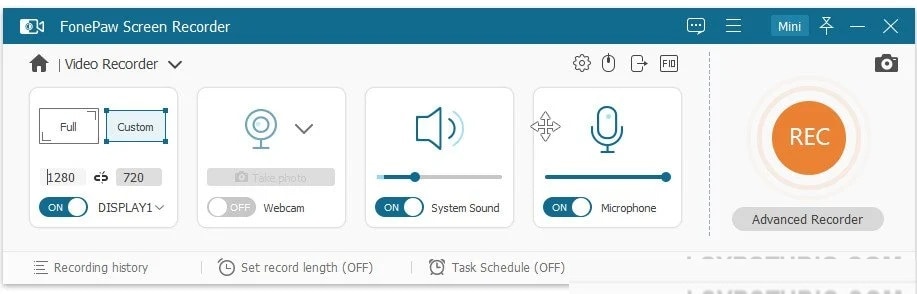
File size: 70 MB FonePaw Screen Recorder 是一款非常实用的视屏屏幕录制工具。软件可以从两个系统和麦克风录制屏幕和音频。记录高清屏幕活动和网络摄像头视频,同时可以录制麦克风和系统声音的音频。可以通过几个步骤捕获电脑屏幕内自己需要的内容. FonePaw Scre
网盘链接 · 支付成功后自动发货
永久有效 · 链接失效免费补发
每日 9:00-21:00 在线客服

File size: 70 MB
FonePaw Screen Recorder是一款非常实用的视屏屏幕录制工具。软件可以从两个系统和麦克风录制屏幕和音频。记录高清屏幕活动和网络摄像头视频,同时可以录制麦克风和系统声音的音频。可以通过几个步骤捕获电脑屏幕内自己需要的内容.
FonePaw Screen Recorder 是一款专业的屏幕录制软件,只需几个步骤即可录制 Windows 电脑屏幕。您可以在这里创建自定义视频,并可针对特定地区/网络摄像头进行录制,还可以选择是否添加音频。
FonePaw 屏幕录像机能做什么?
音频录制:
可同时录制屏幕和系统音频以及麦克风音频。目前不支持 Mac 系统声音录制。
录制网络摄像头视频
您可以只录制网络摄像头视频,也可以同时录制屏幕活动。
截屏
一键即可捕获桌面画面或从录制的视频中截取屏幕截图。
注释:
通过在录制内容或屏幕截图上绘制图形或添加文本、箭头来创建独特的视频。
自定义录制区域
选择整个电脑屏幕或屏幕的一部分开始录制。
追踪鼠标
使光标突出显示并显示鼠标点击,以自定义录制。
导出为多种格式
录制的视频可以在输出设置中保存为不同的视频格式。推荐使用 MP4 格式。
设置视频/音频质量
输出视频和音频质量可以设置为高、中、低。
快捷键
设置特定操作的快捷键,以便在录制时快速执行操作。
一键预览
快速查看已记录的历史记录(视频和屏幕截图),您可以一键分享或删除。
定时设置
轻松设置视频录制时长(仅限 Windows 版本)。
GIF Maker
将录制内容导出为 GIF 图像并设置其帧速率(仅限 Windows 版本)。
FonePaw Screen Recorder, a professional video screen recording software will capture your screen for Windows computer in several steps. Create your own video for specific region/webcam with or without audios here.
What You Can Do with FonePaw Screen Recorder?
Audio Recording
Record screen and audio togther from both systems and Microphones. For Mac, system sound is not supported now.
Record Video From Webcam
It is possible to record your webcam video only or along with screen activity.
Take A Screenshot
One click to capture your desktop or get a snapshot from the recording video.
Annotation
Create the unique video with drawing or adding texts, arrows to the recording or screenshot.
Customize Recording Area
Select the entire computer screen or part of it to begin your capturing.
Track Your Mouse
Make cursor stand out and show the mouse clicks to customize your recordings.
Export to Multiple Formats
The recorded videos can be saved in different video formats in output settings. MP4 is recommended.
Set Video/Audio Quality
The output video and audio quality can be set as High, Medium and Low.
Hotkeys
Set up hotkeys for certain operation so you can take quick action when recording.
One-Click Preview
Quickly check the recorded history (videos and screenshots) and you can share or delete in one click.
Schedualed Settings
Easily set the recording length for the video as you like (only on Windows version).
GIF Maker
Export recording as GIF image and set up its frame rate (only on Windows version).
Homepage
同类资源
与当前资源同分类推荐 音频工具
World Colors Pipa 中国民乐琵琶音色
永久有效 · 网盘发货
 音频工具
Liikkuva v1.1北欧斯堪的纳维亚弦乐音源 配乐编曲Texture音色库
永久有效 · 网盘发货
 音频工具
动态范围增强器 Techivation M-Loudener v1.1.0 MOCHA Win
永久有效 · 网盘发货
 音频工具
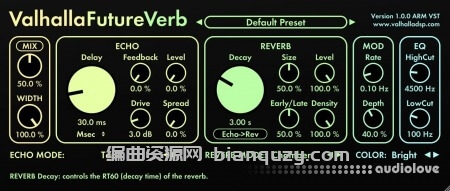
未来混响 Valhalla DSP Valhalla FutureVerb v1.0.0.8 R2R Win
永久有效 · 网盘发货
 音频工具
木歌《情绪操控术》26节
永久有效 · 网盘发货